How to Build a MetaTrader 5 Python Trading Bot Expert Advisor
Learn how to build your Expert Advisor in Python using MetaTrader 5 in this series. You'll get a step by step guide with incredible explanations to help you every step of the way.

how_to_build_a_metatrader5_trading_bot_expert_advisor
jimtin
A GitHub repository by jimtin
MetaTrader5 Python Trading Bot
Ever wanted to build an automated trading bot? Got a strategy in mind? Got some skills in Python?
My new series “How to Build a Meta Trader 5 Python Trading Bot” was written just for you.
About the Series
The series shows you how to build your very own Python Trading Bot for Meta Trader 5 using the MetaTrader module for Python.
The series assumes that you have a working knowledge of Python scripting, know how to use an IDE and understand the basics of trading (stop loss, take profit, and so on). All code is used at your own discretion and risk, including developing your own strategy 😊
💡All trading is at your own risk. My goal is simply to inform and explain, not provide financial or trading advice. ### In This Episode
By the end of this episode, your project will be set up and MT5 will be getting started by Python.
GitHub Code
Getting Started
About MetaTrader5
MetaTrader5 (MT5) is one of the most widely used retail trading platforms for Foreign Exchange (Forex), Stocks, and Futures on the planet. Many large brokers (for instance IC Markets) provide it to their retail clients.
Before MT5, there was Meta Trader 4 (MT4). For our purposes, the biggest functional difference between MT4 and MT5 is the Python-based Application Programming Interface (API) implemented in MT5. This expanded the previous C++ based Meta Query Language (MQL) into the more readable and vastly more popular Python Programming Language.
What You Need
For the rest of this series, you need the following:
- A Windows 10 or above computer (for reasons known only to Meta Trader, the macOS and Linux versions of MT5 don’t interface with Python)
- Python 3 installed (I used Python 3.10 for this series)
- A trading account set up through your broker (I ***highly ***recommend that you use a Demo Account for this series)
Project Setup
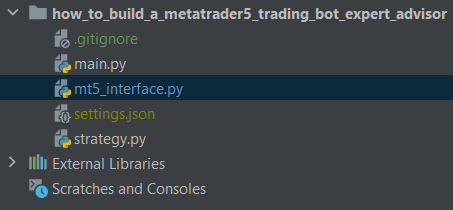
Your project will use main.py and three other files. Set these up now in your IDE of choice (I use Jetbrains Pycharm):
main.py— the main function for our trading botmt5_interface.py— our interface with MT5strategy.py— our trading strategysettings.json— your project settings. If you’re using a Version Control System (VCS), immediately add your settings.json to .gitignore or equivalent
It should look something like this:
 How to build a Meta Trader 5 Python Trading Bot setup### Loading Your Settings
For this series, all settings variables are stored in JSON format in a separate file called settings.json. JSON is used as it is a widely used text-based format for representing structured data, especially on websites, and it is stored in a separate file to prevent the hard-coding of sensitive information into scripts.
An example of what settings.json looks like can be found in the file example_settings.json, linked to GitHub here. This file contains the full list of settings needed for the tutorial, with any sensitive information removed.
Let’s get settings.json implemented.
Set Up settings.json
Four variables are needed initially:
username— the username being used for your MT5 login (demo account!)password— the password for the MT5 loginserver— the server your broker gives you to log in tomt5Pathway— this is the pathway to your MT5 .exe on windows
Typically the username, password, and server variables are provided by your broker, while the mt5Pathway is where your MT5 executable is stored. Here’s what mine looked like (fake information used for username/password 😊):
1{
2    "username": "your_username - typically an 8 digit number",
3    "password": "Do not share with anyone!",
4    "server": "ICMarkets-Demo",
5    "mt5Pathway": "C:/Program Files/ICMarkets - MetaTrader 5/terminal64.exe"
6}
Importing Settings Function
Next, you need to import these settings into the program. This will be done through main.py Here’s the function:
1import json
2import os
3
4# Function to import settings from settings.json
5def get_project_settings(importFilepath):
6    # Test the filepath to sure it exists
7    if os.path.exists(importFilepath):
8        # Open the file
9        f = open(importFilepath, "r")
10        # Get the information from file
11        project_settings = json.load(f)
12        # Close the file
13        f.close()
14        # Return project settings to program
15        return project_settings
16    else:
17        return ImportError
In this code we:
- Imported the libraries
jsonandos - Tested if the filepath provided works, returning an
ImportErrorif it didn’t - Returned the settings from the file
Import Settings Through Main
Now, still in main.py, add two more lines under the if __name__ == '__main__':
import_filepath = "Path/To/Your/Settings.json"the filepath to your settingsproject_settings = get_project_settings(import_filepath)retrieve the project settings
Here’s what your main function should look like (your filepath will probably be different):
1# Main function
2if __name__ == '__main__':
3    import_filepath = "C:/Users/james/PycharmProjects/how_to_build_a_metatrader5_trading_bot_expert_advisor/settings.json"
4    project_settings = get_project_settings(import_filepath)
Start MetaTrader5 with Python
Awesome work on getting your settings imported!
The next stage is to initialize your MT5 using Python. Let’s get going!
MetaTrader5 Python API
The MetaTrader5 Python API, while extensive, can be quite fiddly. Ensuring that variables are explicitly cast to their correct type (int, float, string, etc) is always required.
Quick Note. I know for many of my advanced programming readers this is not uncommon. Especially for those who use languages like Rust, C, Go, etc. However, for those with simple Pythonic experience, this can be quite the wake-up call!
Starting MT5
MT5 can be ‘fiddly’ to get started. In my experience, the only consistent way to ensure that it is started AND working properly is to implement two functions: initialize and login. Weirdly enough, there have been times when I’ve initialized but not logged in and MT5 has worked. Many tutorials only talk about the initialize function, which can leave you stranded when it doesn’t work ❤
The function below includes both initialize and login . This should ensure a consistent startup experience and save you many hours of troubleshooting.
Implement this function in the mt5_interface.py file created at the start of the tutorial.
1import MetaTrader5
2
3# Function to start Meta Trader 5 (MT5)
4def start_mt5(username, password, server, path):
5    # Ensure that all variables are the correct type
6    uname = int(username) # Username must be an int
7    pword = str(password) # Password must be a string
8    trading_server = str(server) # Server must be a string
9    filepath = str(path) # Filepath must be a string
10
11    # Attempt to start MT5
12    if MetaTrader5.initialize(login=uname, password=pword, server=trading_server, path=filepath):
13        print("Trading Bot Starting")
14        # Login to MT5
15        if MetaTrader5.login(login=uname, password=pword, server=trading_server):
16            print("Trading Bot Logged in and Ready to Go!")
17            return True
18        else:
19            print("Login Fail")
20            quit()
21            return PermissionError
22    else:
23        print("MT5 Initialization Failed")
24        quit()
25        return ConnectionAbortedError
Next, in main.py include the following:
import mt5_interfaceat the top of the file- In
__main__, addmt5_interface.start_mt5(project_settings["username"], project_settings["password"], project_settings["server], project_settings["mt5Pathway"])
Hit Play on your IDE now and MetaTrader5 should start! Sweet!
If you go to your Journal on MT5, you will see that your account has been authorized and synchronized:
 MT5 Successfully Authorized### Main.py
Here’s what your main.py should look like (a few comments added):
1import json
2import os
3import mt5_interface
4
5# Function to import settings from settings.json
6def get_project_settings(importFilepath):
7    # Test the filepath to sure it exists
8    if os.path.exists(importFilepath):
9        # Open the file
10        f = open(importFilepath, "r")
11        # Get the information from file
12        project_settings = json.load(f)
13        # Close the file
14        f.close()
15        # Return project settings to program
16        return project_settings
17    else:
18        return ImportError
19
20# Main function
21if __name__ == '__main__':
22    # Set up the import filepath
23    import_filepath = "settings.json"
24    # Import project settings
25    project_settings = get_project_settings(import_filepath)
26    # Start MT5
27    mt5_interface.start_mt5(project_settings["username"], project_settings["password"], project_settings["server"],
28                            project_settings["mt5Pathway"])
Conclusion
And that’s a wrap for Episode 1. Nice work!
So far you’ve set up your project and automatically initialized your MT5 program. You’re well on your way to using MetaTrader 5 with Python!
In the next episode, you’ll be implementing your trading functions for MT5. See you there.
List of Episodes
- Getting Started
- Making Trades
- Automated Strategy
- Automated Trading
- Bonus: MetaTrader 5 Python Trailing Stop
Say Hi!
I love hearing from my readers, so feel free to reach out. It means a ton to me when you clap for my articles or drop a friendly comment — it helps me know that my content is helping.
❤
Resources
Written by TradeOxy Team
Pioneering the future of algorithmic trading through the lens of disruption. Building tools for the next generation of quant traders.